Posted: July 17th, 2009 | Author: davecavins | Filed under: SharePoint Design | Tags: jQuery, SharePoint, web services | 12 Comments »
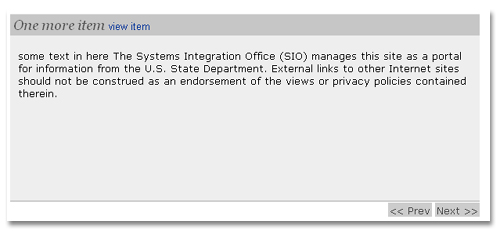
This is a simple news slider I put together using SharePoint web services, jQuery and the Easy Slider Plugin from CSS Globe. You can get the plugin here. The Web Part points to the local site’s Annoucements list and display the title, body and a link to view the item. The jQuery connection to the SharePoint web service is based on code from Jan Tielens.

Read the rest of this entry »
Posted: July 14th, 2009 | Author: davecavins | Filed under: General SharePoint, SharePoint Design | Tags: Data View Web Part, Endusersharepoint, Gabe Hilado, jQuery | No Comments »
A while back there was a post on EndUserSharePoint.com by Paul Grenier that described how to use jQuery and the CEWP to make a preview pane. I thought it was a very nice solution and worked better than the out of the box preview pane SharePoint uses.
Too Much Code
The only issue is the preview pane solution is that in environments with slow internet connections the preview pane will be almost as slow as if the user actually broswed to the display form for the item.
Although its done through AJAX jQuery is still having to load the whole DispForm.aspx and then only displaying the contents of a specific element. DispForm.aspx when rendered through the borwser (like most pages in SharePoint) is very code heavy with over 700 lines of code ( An Announcement List item). Reducing the amount of code jQuery has to load from the diplay form will decrease load times and make everyone happy.
Faster
Gabe Hilado and I decided to try to make it faster. The simple solution is to make your own diplay form in SharePoint Designer. First we tried creating a blank .aspx page and putting the list view webpart on it. The reduced the amount of code on the page but I wanted it to be even faster.
Read the rest of this entry »
Posted: July 6th, 2009 | Author: davecavins | Filed under: SharePoint Design | Tags: CSS, SharePoint | 2 Comments »
When you want to create a custom theme for a SharePoint site the top navigation menu is an important part of the design. Using the out of the box themes you can change the colors but if you really want it to look like a non-SharePoint menu it will take some work. In the standard sharepoint masterpage you will see the following code that defines the horizontal navigation. If you are not familiar with styling ASP server controls it can be somewhat confusing. Read the rest of this entry »
Recent Comments