RSS Dave on Twitter

CSS-Tricks AnythingSlider in SharePoint

Posted: December 7th, 2009 | Author: davecavins | Filed under: SharePoint Design, Web Design | Tags: , , , , | 27 Comments »

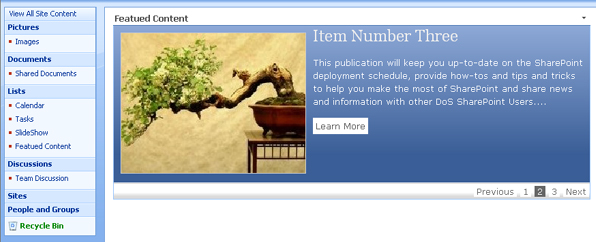
Chris Coyier from CSS-Tricks built this really cool jQuery plugin that creates a content slider that will support any regular HTML in the slides. This is cool because many sliders I have used had limitations on what could be on the slides and did not offer many of the featuers the AnythingSlider does.

AnythingSlider in SharePoint

AnythingSlider in SharePoint

Setup

To get this working in SharePoint you will need to make sure you have a reference to jQuery in the page somewhere as well as a list for the slider to read from. For my example I am using an out of the box annoucements list.  You will also need the files for the plugin download the anythingSlider plugin from css-tricks.com.

  • In SharePoint Designer add a dataview webpart to the page with any field from your annoucements list.
  • Switch to code view and find the first <xsl> tag. It should be right after the closing <DatasSources> tag. 
  • Right click on the tag and choose “Select Tag”. Press delete, don’t worry we will be adding in our own xsl.
  • Select the auto generated xsl

  • Paste the following xsl into the page where you deleted the code.
  • <Xsl>
    <xsl:stylesheet xmlns:x="http://www.w3.org/2001/XMLSchema" xmlns:d="http://schemas.microsoft.com/sharepoint/dsp" version="1.0" exclude-result-prefixes="xsl msxsl ddwrt" xmlns:ddwrt="http://schemas.microsoft.com/WebParts/v2/DataView/runtime" xmlns:asp="http://schemas.microsoft.com/ASPNET/20" xmlns:__designer="http://schemas.microsoft.com/WebParts/v2/DataView/designer" xmlns:xsl="http://www.w3.org/1999/XSL/Transform" xmlns:msxsl="urn:schemas-microsoft-com:xslt" xmlns:SharePoint="Microsoft.SharePoint.WebControls" xmlns:ddwrt2="urn:frontpage:internal">
    	<xsl:output method="html" indent="no"/>
    	<xsl:decimal-format NaN=""/>
    	<xsl:param name="dvt_apos">&apos;</xsl:param>
    	<xsl:variable name="dvt_1_automode">0</xsl:variable>
    	<xsl:template match="/" xmlns:x="http://www.w3.org/2001/XMLSchema" xmlns:d="http://schemas.microsoft.com/sharepoint/dsp" xmlns:asp="http://schemas.microsoft.com/ASPNET/20" xmlns:__designer="http://schemas.microsoft.com/WebParts/v2/DataView/designer" xmlns:SharePoint="Microsoft.SharePoint.WebControls">
    		<xsl:call-template name="dvt_1"/>
    	</xsl:template>
    	<xsl:template name="dvt_1">
    		<xsl:variable name="Rows" select="/dsQueryResponse/Rows/Row" />
    		    <link rel="stylesheet" href="css/page.css" type="text/css" media="screen" />
        <link rel="stylesheet" href="css/slider.css" type="text/css" media="screen" />
    <script type="text/javascript" src="js/jquery.easing.1.2.js"></script> <script src="js/jquery.anythingslider.js" type="text/javascript" charset="utf-8"></script> <script type="text/javascript">
            function formatText(index, panel) {
    		  return index + &quot;&quot;;
    	    }
            $(function () {
                $(&apos;.anythingSlider&apos;).anythingSlider({
                    easing: &quot;easeInOutExpo&quot;,
                    autoPlay: true,
                    delay: 3000,
                    startStopped: false,
                    animationTime: 600,
                    hashTags: true,
                    buildNavigation: true,
             	pauseOnHover: true,
         	startText: &quot;Go&quot;,
         	stopText: &quot;Stop&quot;,
    	navigationFormatter: formatText
                });
                $(&quot;#slide-jump&quot;).click(function(){
                    $(&apos;.anythingSlider&apos;).anythingSlider(6);
                });
            });
        </script>
    <div class="anythingSlider">
    	<div class="wrapper">
    		<ul>
    		<xsl:call-template name="dvt_1.body">
    			<xsl:with-param name="Rows" select="$Rows" />
    			</xsl:call-template>
    		</ul>
    		    </div>
            </div>
    	</xsl:template>
    	<xsl:template name="dvt_1.body">
    		<xsl:param name="Rows" />
    		<xsl:for-each select="$Rows">
    			<xsl:call-template name="dvt_1.rowview" />
    		</xsl:for-each>
    	</xsl:template>
    	<xsl:template name="dvt_1.rowview">
    		<li>
    		<div class="textSlide">
    <!-- display the item title and a link to the item -->
    <h3><a href="/{@FileDirRef}/DispForm.aspx?ID={@ID}" title="{@Title}"><xsl:value-of select="@Title" /></a></h3>
    <!-- display the body of the item  -->
    	<xsl:value-of select="@Body" disable-output-escaping="yes" />
    	</div>
    	</li></xsl:template>
    </xsl:stylesheet>
    </Xsl>
    
  • Important: Adjust the links on the code so that point to your local copies of the css easing and plugin files.

Notes

 I made a few small changes in the css file to make things work better with SharePoint.  In page.css file I deleted several of the classes so they would not interfere with SharePoint’s styles.  In the xsl I used a div with a class of  .textslide to wrap the content so I had to change that in page.css as well.  To keep long annoucements from breaking the design I set the overflow on the .textslide div to hidden. Below is the code I used in page.css.  

/*hide content that is too long */
.textSlide { padding: 10px 30px; overflow:hidden; }
.textSlide h3  { font: 20px Georgia, Serif; margin-bottom:12px; }
.textSlide h4  { text-transform: uppercase; font: 15px Georgia, Serif; margin: 10px 0; }
.textSlide ul  { list-style: disc; margin: 0 0 0 25px; }
.textSlide ul li  { display: list-item; }

 I did not make any changes to slider.css. It may be easier to just combine the tow files to keep things simple and reduce page load times.

Conclusion

The AnythingSlider plugin is lightweight, powerful and easy to customize.  Adding this type of functionality that is common on regular websites to a SharePoint site can help guide users to important information and of course make your site ‘cooler’ than the average SharePoint site. 

The code above just shows all the items in the list but once you have it working it is easy to add your own sort/filter parameters to the data view so only certain items are shown.

The slider could also be implemented to run off of the SharePoint list web service the same way I did in this post.  If you have any questions or comments feel free to post.

Bookmark and Share
Share on Google Buzz

Limitations of displaying attachments in DVWP

Posted: September 15th, 2009 | Author: davecavins | Filed under: General SharePoint | Tags: , , , | 4 Comments »

attachmentsSo on a recent project I needed to show a link to the attachment for each item in a list. A quick Google search found How to show Attachments with DataFormWebPart from Dario Martirani Paolillo’s Web Log. I was excited because it seemed to work well and was very easy to implement. 

As I was about to finish up the project I was given some new requirements which meant that there would be two Data View Web Parts on the page and both would need to show the attachments link.  This is when the issues started.  When you have two web parts on the page using the display attachments code the second one will just show “[value of field: Attachments]” instead of the actual link.  If anyone knows a good solution for this issue please post a comment.

I want to avoid using something like this jQuery solution by Paul Grenier simply because of the performance issues it will create.

Bookmark and Share
Share on Google Buzz

Dynamic Drive’s Featured Content Slider in Sharepoint

Posted: May 12th, 2009 | Author: davecavins | Filed under: SharePoint Design, Web Design | Tags: , , , , , | 8 Comments »

I have used Dynamic Drive’s Featured Content Slider on a couple of recent projects and wanted to see if I could get it working in SharePoint. There were several key requirements:

  1. User can easily add items
  2. Users  can choose a style for each item
  3. Expired Items must not show
  4. Each item will have a Title, Body and a customizable “read more” link.

Here’s how I did it.

slider 

First I created a custom list to store the slider items.  These are the columns I used:

Title – Single Line of text
Body – Multiple Lines of text
Link URL – HyperLink
Expiration – Date and Time (expired items will not be shown)
Image – Picture
Style – Choice  (we will use this column to allow users to choose the style of each item)

On the page I used a DataView WebPart to display the Title, Body, Image and Link URL columns.   Using Sharepoint Designer I setup filtering on the expiration date.  To do this in design view right click on the data view webpart and bring up the “Common Data View Tasks ” box and choose Filter.  In the window I set the conditional statement so that items would only be shown if the expiration date was greater than today. Read the rest of this entry »

Bookmark and Share
Share on Google Buzz
Get Adobe Flash playerPlugin by wpburn.com wordpress themes