Posted: June 7th, 2010 | Author: davecavins | Filed under: SharePoint Design | Tags: CSS, SharePoint, stylesheet, theme | 1 Comment »
Many sites offer the ability for users to change the color and style of the site to fit their preference. SharePoint has this feature to some extend through themes but changing themes is not a very simple process and requires browsing to several pages.
With JavaScript you can change the CSS file a page uses without requiring a page refresh. I have used this technique many times on non-SharePoint sites but there are some special challenges implementing this in SharePoint. For this solution there were several requirements.
- Users need to be able to switch themes and have the setting saved
- No page refresh
- Should be able to use both out of the box themes and custom themes
So first I needed to get the CSS files and images for the themes I wanted to use. When you assign a theme to a site all the files for the theme are copied to a folder named _themes in the root of the site.

_themes folder
So what I did was assign each theme I wanted to use to the site one at a time. With SharePoint designer I copied the files folders for each theme into a document library called Site Styles. Each folder contains all the resources needed or the theme to work. Read the rest of this entry »
Posted: May 3rd, 2010 | Author: davecavins | Filed under: General SharePoint | Tags: better forms, forms, jQuery, SharePoint | 2 Comments »
So I found this cool jQuery plugin that does watermarks for form inputs. Using watermarks is a good way to help make SharePoint forms easier to use. To test the plugin I started with the new item form from same test list I used in my previous posts.

Watermarks
Prerequisites
- jQuery Library referenced in the page
- CEWP on the page
Read the rest of this entry »
Posted: April 23rd, 2010 | Author: davecavins | Filed under: SharePoint Design | Tags: CSS-Tricks, javasc, SharePoint Designer, slider | No Comments »
Several people have asked how to change the under of items displayed in the slider and how to change the sort order.
Item Limit
To change the number of items displayed use the code below.
<Xsl>
<xsl:stylesheet xmlns:x="http://www.w3.org/2001/XMLSchema" xmlns:d="http://schemas.microsoft.com/sharepoint/dsp" version="1.0" exclude-result-prefixes="xsl msxsl ddwrt" xmlns:ddwrt="http://schemas.microsoft.com/WebParts/v2/DataView/runtime" xmlns:asp="http://schemas.microsoft.com/ASPNET/20" xmlns:__designer="http://schemas.microsoft.com/WebParts/v2/DataView/designer" xmlns:xsl="http://www.w3.org/1999/XSL/Transform" xmlns:msxsl="urn:schemas-microsoft-com:xslt" xmlns:SharePoint="Microsoft.SharePoint.WebControls" xmlns:ddwrt2="urn:frontpage:internal">
<xsl:output method="html" indent="no"/>
<xsl:decimal-format NaN=""/>
<xsl:param name="dvt_apos">'</xsl:param>
<xsl:variable name="dvt_1_automode">0</xsl:variable>
<xsl:template match="/" xmlns:x="http://www.w3.org/2001/XMLSchema" xmlns:d="http://schemas.microsoft.com/sharepoint/dsp" xmlns:asp="http://schemas.microsoft.com/ASPNET/20" xmlns:__designer="http://schemas.microsoft.com/WebParts/v2/DataView/designer" xmlns:SharePoint="Microsoft.SharePoint.WebControls">
<xsl:call-template name="dvt_1"/>
</xsl:template>
<xsl:template name="dvt_1">
<xsl:variable name="dvt_StyleName">Table</xsl:variable>
<xsl:variable name="Rows" select="/dsQueryResponse/Rows/Row" />
<xsl:variable name="RowLimit" select="3" />
<xsl:variable name="dvt_RowCount" select="count($Rows)" />
<xsl:variable name="IsEmpty" select="$dvt_RowCount = 0" />
<link rel="stylesheet" href="css/page.css" type="text/css" media="screen" />
<link rel="stylesheet" href="css/slider.css" type="text/css" media="screen" />
<script type="text/javascript" src="js/jquery.easing.1.2.js"></script> <script src="js/jquery.anythingslider.js" type="text/javascript" charset="utf-8"></script> <script type="text/javascript"></script> <div class="anythingSlider">
<div class="wrapper">
<ul>
<xsl:call-template name="dvt_1.body">
<xsl:with-param name="Rows" select="$Rows" />
<xsl:with-param name="FirstRow" select="1" />
<xsl:with-param name="LastRow" select="$RowLimit" />
</xsl:call-template>
</ul>
</div>
</div>
</xsl:template>
<xsl:template name="dvt_1.body">
<xsl:param name="Rows" />
<xsl:param name="FirstRow" />
<xsl:param name="LastRow" />
<xsl:for-each select="$Rows">
<xsl:variable name="dvt_KeepItemsTogether" select="false()" />
<xsl:variable name="dvt_HideGroupDetail" select="false()" />
<xsl:if test="(position() >= $FirstRow and position() <= $LastRow) or $dvt_KeepItemsTogether">
<xsl:if test="not($dvt_HideGroupDetail)" ddwrt:cf_ignore="1">
<xsl:call-template name="dvt_1.rowview" />
</xsl:if>
</xsl:if>
</xsl:for-each>
</xsl:template>
<xsl:template name="dvt_1.rowview">
<li>
<div class="textSlide">
<h3><a href="/{@FileDirRef}/DispForm.aspx?ID={@ID}" title="{@Title}"><xsl:value-of select="@Title" /></a></h3>
<xsl:value-of select="@Body" disable-output-escaping="yes" />
</div>
</li></xsl:template>
</xsl:stylesheet>
</Xsl>
Read the rest of this entry »
Posted: April 21st, 2010 | Author: davecavins | Filed under: General SharePoint | Tags: CSS, design, jQuery, SharePoint | 5 Comments »
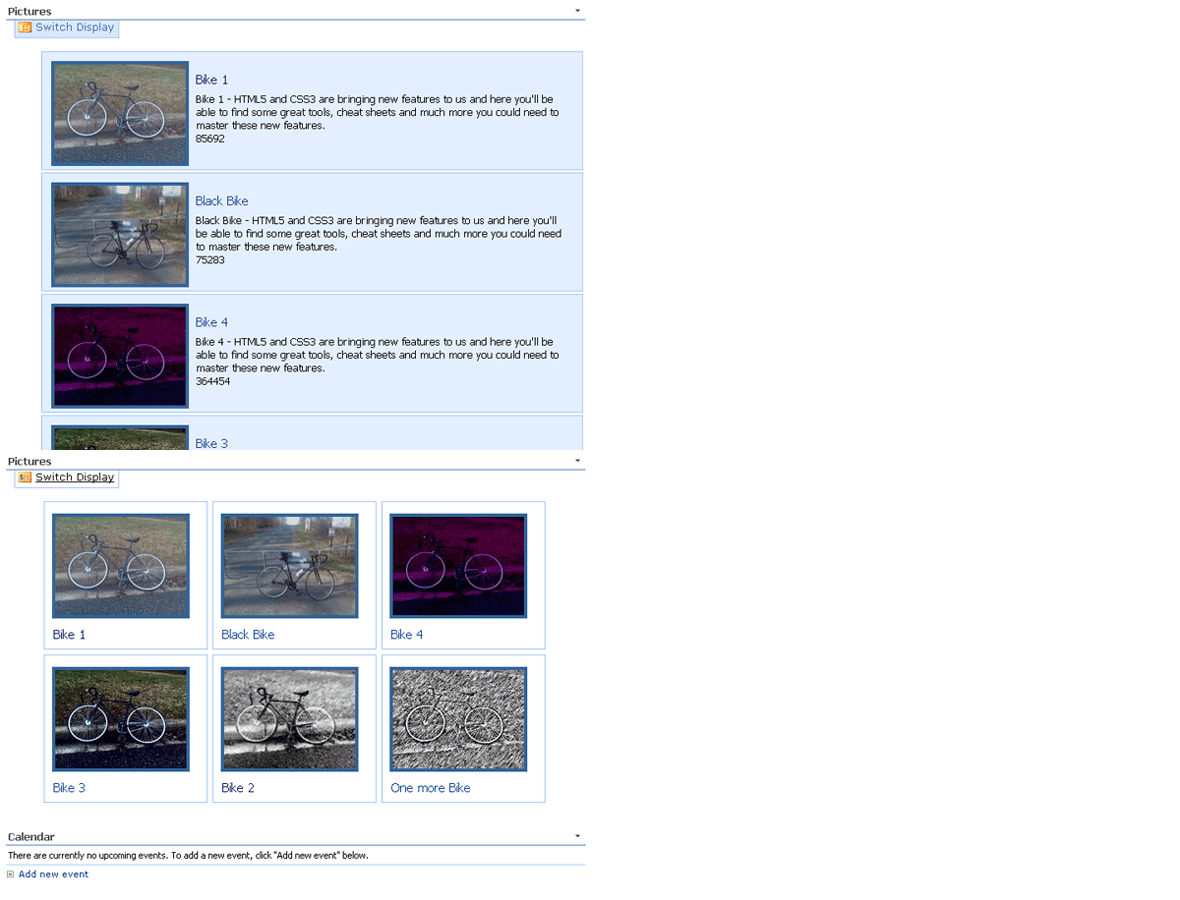
Sometimes it is useful to allow users to quickly change how data is displayed. Changing the display can make is easier to see patterns or find a specific item you are looking for. With CSS and jQuery we can easily change the way content is displayed and arranged on the page. I got the idea for this post from here

Switch views using CSS and jQuery
Read the rest of this entry »
Posted: March 25th, 2010 | Author: davecavins | Filed under: General SharePoint, SharePoint Design | Tags: comments | 6 Comments »
So here is what we have done so far from Part 1
- Create a custom list to hold our comments
- Link the list with an Annoucements list using lookup columns
- Create a page to display a single annoucement and the realted comments from our comments list.
This is what it looks like:

What we have so far.
All we need to do now is setup a form on the page to allow users to create new comments on the item they are viewing.
Read the rest of this entry »
Posted: March 15th, 2010 | Author: davecavins | Filed under: General SharePoint, SharePoint Design | Tags: comments | 3 Comments »
In SharePoint 2007 the only lists that offer a comments feature are the posts list in the Blog site template. Wouldn’t it be nice to allow people to post comments on other types of lists like announcements or documents? Well after lots of trial and error I figured out how to do it.
What you will need
- Two Lists
- SharePoint Designer
- Basic knowledge of HTML
I’ll assume you already have a list setup on which you want to allow users to comment. For this example I will use a standard Announcements list.
So the first thing we need to do is create a list to hold our comments. I just used the following columns:
- Title
- Body
- Post (lookup to main list’s ‘Title’ column)
In the main list you will need to add a column that points back to the comments list.
- Go to the list settings page and click ‘Create Column’
- Name the column ‘Comments‘ (the name does not really matter. Set the type to ‘Lookup‘
- The lookup should get information from the comments list you created. The column should be set to the lookup column in the comments list. See the screenshot below.
This column will show us the number of comments each item in our list has. Read the rest of this entry »
Posted: March 10th, 2010 | Author: davecavins | Filed under: General SharePoint | Tags: CSS, Printing | No Comments »
Hides everything except the list and the breadcrumbs. More posts coming later this week.
*{ background-image:none; /* remove all background images */ }
.ms-sbcell, /* search box at top of page */
.ms-topnavContainer, /*horizontal nav container */
img, /*images */
.ms-globalbreadcrumb, /*breadcrumbs */
.ms-titleareaframe, /* page image */
.ms-siteactionsmenu, /*site actions menu */
.ms-pagemargin, /* left margin beside quick launch*/
.ms-quickLaunch, /* quick launch menu */
.ms-sitetitle, /* name name */
.ms-menutoolbar, /* list tool bar */
.ms-pagetitle /* page title */
{ display:none; visibility:hidden; /*width:0px; height:0px;*/
}
.ms-pagetitleareaframe table {
position:absolute; top:1px;
width:600px;
background-image:none;
}
.ms-bodyareaframe { /*remove border around main content*/
border:0px;}
Posted: February 22nd, 2010 | Author: davecavins | Filed under: SharePoint Design | Tags: better forms, hints, SharePoint, UI | 3 Comments »
When users are asked to enter information in a form sometimes it helps to give them a hint regarding what types of information should be entered. Out of the box you can enter a description of each field that will be displayed. If you want something more dynamic here is how to do it.
- Add jQuery to the page using the method described in this post
- Download the jQuery Hint Box plugin and link it to the page.
- Call the script and set the options for the position and html content of the hint. Here is an example:
<script type="text/javascript">
$("input[title='Author']").inputHintBox({
className:'simple_box',
html:'Who is the author of this quote?',
incrementLeft:-25,
incrementTop:-15
});
</script>
The above script simply selects the field using its title attribute then sets the css class for the element, its contents and position.
Here is the CSS I used for my example.
.simple_box{
border:1px solid gray; background:url('/_layouts/images/toolgrad.gif');
font-size:xx-small; color:#444; padding:7px;
}
Here it is in action.

hints
Posted: February 2nd, 2010 | Author: davecavins | Filed under: General SharePoint | Tags: better forms, forms, jQuery, SharePoint, UI | 4 Comments »
For the sake of demonstration I made a list called quotes. Each quote has a title, body and author field, as a requirement the body field should not have more than 200 characters. So to let users know when they are getting close to the character limit we will setup a character count script.
For this solution I will use this jQuery script from CSS Globe.

The default form
Read the rest of this entry »
Posted: January 25th, 2010 | Author: davecavins | Filed under: General SharePoint, SharePoint Design | Tags: better forms, CSS, forms, jQuery, SharePoint | No Comments »
Over the next few weeks I will be writing a series of posts on how to improve the out of the box SharePoint forms by using simple CSS and jQuery solutions. These solutions will help improve usability as well as enhance the look and feel. Look for the first post later this week.
As a point of reference this is what we will be starting with.

Standard SharePoint Form
Stay tuned for more soon.