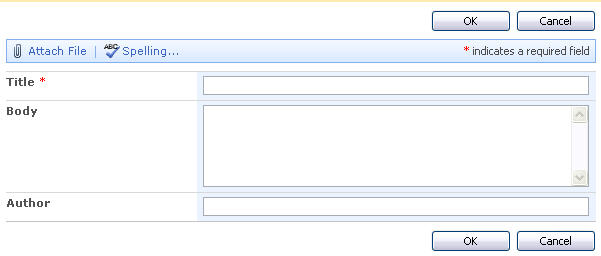
For the sake of demonstration I made a list called quotes. Each quote has a title, body and author field, as a requirement the body field should not have more than 200 characters. So to let users know when they are getting close to the character limit we will setup a character count script.
For this solution I will use this jQuery script from CSS Globe.
Setup
So first off we need to add a link to the jQuery script and the plugin. You can do this using a content editor web part but I have noticed in some cases scripts need to be in the section of the page. The easiest way to add the scripts to the of the page is to use the following code.
<asp:Content ContentPlaceHolderID="PlaceHolderAdditionalPageHead" runat="server">
<!—scripts / css goes in here -- >
<script type="text/javascript" src="http://ajax.googleapis.com/ajax/libs/jquery/1.3.1/jquery.min.js">
  </script>
  <script type="text/javascript" src="js/charCount.js"></script>
</asp:Content>
So once you have all the scripts you need on the page we just need to attach the behavior to the form body form field. To do this we can add some JavaScript to the page in a Content Editor web part. We can use jQuery to select the element we want to target and then configure the plugin settings.
<script type="text/javascript">

$("textarea[title='Body']").charCount({
    allowed: 200,	 //maximum number of characters allowed
    warning: 175,  // when to show the warning
    counterText: 'Characters left:'  //text before the character count
});
</script>
For more configuration options and explanations of the plugin check out this page.
I used the following CSS to style the appearance of the character count text.
.counter{
	position:relative;
	right:14px;
	top:0;
	font-size:12px;
	font-weight:normal;
	color:#555;
	float:right;
	clear:both;
	display:block;
	text-align:right;
	background:#fff;
	width:150px;
	padding:3px;
	border:1px solid #888;
	border-top:0px;
	margin-top:-1px;
	}
.warning{color:#660000; font-weight:bold;}
.exceeded{color:#e00; font-weight:bold;}
In Action


In the next part of this series we will add hints to the form fields and make some other improvements.
Pingback: Dave Cavins » Blog Archive » Improving #SharePoint Forms – Hints
Pingback: Improving #SharePoint Forms – Watermarks | Dave Cavins
Dave,
The approach you have suggested would not work for “Rich Text Editor”. I found this as better approach.
http://social.msdn.microsoft.com/Forums/en/sharepointdevelopment/thread/4eb27a9a-66d7-468e-86a3-6fbb95815449
@PG very cool thanks for sharing.
Pingback: Improving Your SharePoint User Experience with jQuery Client Side Form Validation | SharePointBoost Blog